|
|
|
|
|
Frequently Asked Questions (FAQ)
|
1. General
2. Technical
3. Funds Transfer
4. Cheque Management
5. Security
6. Two-Factor Authentication (2FA)
7. BizChannel@CIMB Security Device
|
General
|
What is BizChannel@CIMB?
|
BizChannel@CIMB is an Internet Banking solution designed to help you monitor and manage your business' banking transactions effectively and efficiently.
It provides a wide range of products and services to suit your business needs. You can access BizChannel@CIMB at https://www.bizchannel.cimb.com.sg/
|
Who is eligible to apply for BizChannel@CIMB?
|
Sole proprietors/Partnerships/Companies/Clubs and Societies that open corporate accounts with CIMB Bank Singapore are eligible to apply for BizChannel@CIMB.
|
How do I apply for BizChannel@CIMB?
|
You may contact your Relationship Manager or our BizChannel@CIMB Support Team at +65 6438 7888. Alternatively, you can email us at
sgb.bizhelp@cimb.com for assistance.
|
What are the activities that I can do online via BizChannel@CIMB?
|
| 1. Account Enquiry | – | View and check your account balances. |
| 2. Transaction History | – | View and check your transaction history. |
| 3. e–Statement | – | Download your account statement online. |
| 4. Forex Rates Inquiry | – | Check forex rates online (board rate). |
| 5. Funds Transfer | – | Perform funds transfers between CIMB Corporate Bank Accounts and access to services such as GIRO Payment, GIRO Collection, MEPS, TT, bulk |
| | payment, payroll, and more. |
| 6. Standing Instructions | – | Schedule future transactions or set up recurring transactions. |
| 7. Cheque Management | – | Execute cheque-related activities such as"Cheque Book Request", "Cheque Status Inquiry" and "Stop Cheque Request" online. |
|
How far back can I view my transaction history using BizChannel@CIMB?
|
You can view up to 90 days of your transaction history via BizChannel@CIMB.
|
I understand that an "Approver" is required to approve a payment, what will happen if he/she rejects the request via BizChannel@CIMB?
|
When an Approver rejects a payment, the payment status will be changed to "Repair" and routed back to the Maker for any necessary amendments.
|
When can I start using BizChannel@CIMB?
|
You can start using this service after receiving your security device and a login password. You will require these two items to perform an initial setup.
|
Can I use this service if I don’t have any banking account with CIMB Bank?
|
You need to have at least one current account with CIMB Bank before you can apply for BizChannel@CIMB.
For more information, please contact our BizChannel@CIMB Support Team at +65 6438 7888.
|
Who can I call for information or technical support relating to BizChannel@CIMB?
|
You can contact our BizChannel@CIMB Support Team at +65 6438 7888.
|
|
|
Back to top of page
Technical
|
Do I need to install any special software for accessing BizChannel@CIMB over the Internet?
|
No, the minimum operating system requirement is Windows XP with SP3 operating system and a compatible web browser such as Microsoft Internet Explorer version 7 and above, or Google Chrome version 26 and above, or Mozilla Firefox version 3 and above.
|
I got an error message indicating that my password is incorrect. What should I do?
|
You have a maximum of 3 attempts to enter your password together with your BizChannel@CIMB ID. After 3 unsuccessful attempts,
your BizChannel@CIMB service will be suspended to safeguard against any unauthorised access. If your account has been suspended, please contact our
BizChannel@CIMB Support Team at +65 6438 7888 for further assistance.
|
Why does my browser time out when I leave it idle?
|
This is a built-in security feature that will automatically log you out of BizChannel@CIMB website after 15 minutes of non-activity on your browser. This is to ensure that your accounts are not accessed by any unauthorised individuals should you leave your PC unattended.
|
How can I view my CIMB Malaysia accounts via BizChannel@CIMB Singapore?
|
You may contact our BizChannel@CIMB Support Team at +65 6438 7888 for more information on our multibank account feature.
|
What should I do if my Internet connection gets cut off amidst an online transaction?
|
If you experience any interruption at any stage while performing a transaction through BizChannel@CIMB, you are advised to check on the status of the transaction by verifying your account balance and/or transaction history.
Only successful transactions will be displayed in your account transaction history. Alternatively, you can contact our BizChannel@CIMB Support Team at +65 6438 7888 for any assistance.
|
How can I ensure that the transactions that had been performed online cannot be viewed by any unauthorised person or stored in the cache memory of the computer
that was used?
|
To ensure the confidentiality of your account information, you are advised to clear the cache memory of the Internet browser.
|
To clear the cache memory from Microsoft Internet Explorer Version 7
|
1. Right click on the IE icon and proceed to click "Properties". When the "Properties" window pops up, click on the "Delete..." button in the "Browsing history" section.
2. A "Delete Browsing History" window will then pop up. Click "Delete Files" and then click "Yes". This will ensure that no unauthorised persons can view your transactions.
|
To clear the cache memory from Mozilla Firefox
|
1. On the top navigation menu, click "Tools" and select "Clear Private Data".
2. Tick items that you wish to clear before clicking to "Clear Private Data Now".
|
Who is the Corporate Administrator?
|
The Corporate Administrator is responsible for the following functions:
1. Create User(s)
2. Assign security device to User(s)
3. Create and assign access rights to User(s)
4. Reset User password
5. Lock and unlock User(s)
6. Access to Company User Activity Reports
7. Approve the changes performed by other Corporate Administrator
For enhanced security, a minimum requirement of two Corporate Administrators is needed to effect any changes.
Any request made by one Corporate Administrator needs to be approved by the other Corporate Administrator to effect the change
(i.e. a Corporate Administrator will not be able to make changes and approve his/her own changes).
Note: Each customer will be able to appoint up to 4 Corporate Administrators per company setup if required.
|
| |
What should I do if I have forgotten my BizChannel@CIMB ID or password?
|
| (A) Password Reset |
1. Please download the BizChannel@CIMB Maintenance Form here to request for a new password.
2. Please fill up Sections 1, 7 & 9 - and have it duly signed by the Approving Person(s).
3. Upon completion, please email the form to us at sgb.bizhelp@cimb.com, and mail in the original copy to the address indicated on the form.
4. Upon receipt and verification of the form, we will process your request within 3 working days and a password mailer will be mailed to the company mailing address.
|
| (B) Forgotten Corporate / User ID |
If you have forgotten your Corporate ID / User ID, please contact our BizChannel@CIMB Helpdesk at (+65) 6438 7888 for assistance.
|
Back to top of page
Funds Transfer
|
What is the processing time for funds transfer?
|
The processing time for funds transfers varies depending on the type of transaction. Please contact our BizChannel@CIMB Support Team at +65 6438 7888 for more information.
|
What is the daily transaction limit?
|
A customised daily transaction limit (by Account Number or Payment Type) can be set by your company’s Corporate Administrator as required.
|
How do I change the daily transaction limit?
|
Corporate Administrators are required to log in to BizChannel@CIMB to effect this change.
|
To change daily transaction limit by Account Number :
|
1. Navigate to Account Management → Account Setup → Account Limit
2. Change your daily transaction limit for each of account registered in BizChannel@CIMB.
|
To change daily transaction limit by Payment Type :
|
1. Navigate to User Group → Edit User Group
2. Change your Maximum Transaction Daily Amount under the Menu list.
|
When will the new daily transaction limit take effect?
|
The new limit will take effect immediately after another Corporate Administrator approves the request.
|
Back to top of page
Cheque Management
|
Can I request for a cheque book via BizChannel@CIMB?
|
Yes, you can request it via the "Cheque Book Request" option.
|
What are the charges for getting a cheque book?
|
The charges for a cheque book request varies, depending on your account type and delivery mode chosen. Please contact our BizChannel@CIMB Support Team at +65 6438 7888 for more information.
|
When will I receive my new cheque book?
|
The delivery time may vary (approximately 2 - 5 days), depending on the delivery mode (normal mail or courier) chosen.
|
Can I view the status of my cheques via BizChannel@CIMB?
|
Yes, you can view the status for all your cheques via the "Cheque Status Inquiry" option.
|
Back to top of page
Security
|
How secure is BizChannel@CIMB Internet Banking?
|
BizChannel@CIMB incorporates high standard security features to protect the confidentiality and integrity of your banking information.
The features include:
1. Unique Corporate ID and password
2. Security device with One-Time Password (OTP), Challenge Response (CR) and Transaction Signing (TS) function
3. 128-bit SSL encryption
4. All transactions performed via Hypertext Transfer Protocol Secure (HTTPS) secured webpage
|
Please view the full list of our security measures
here.
|
There are many phishing websites, how do I know if the site I accessed is the legitimate BizChannel@CIMB website?
|
To ensure the confidentiality of your account information, you should always type
https://www.bizchannel.cimb.com.sg/corp
or
http://www.cimbbank.com.sg directly into the address bar of the browser.
Do not access to Internet banking service through any hyperlinks embedded via emails.
|
Can I access BizChannel@CIMB via a publicly shared computer?
|
Yes. However, we would advise you not to perform any online banking transactions from a publicly shared computer as it is difficult to ensure that the computer is free from malicious software, which may compromise the confidentiality and integrity of your account information.
|
What can I do to ensure that my BizChannel@CIMB ID or password is not revealed?
|
Below are some good practices on how to safeguard your account information:
1. Never write down your BizChannel@CIMB ID or password anywhere.
2. Never disclose your BizChannel@CIMB ID or password to anyone.
3. Ensure that your PC or laptop is protected with the latest anti-virus software, personal firewall, and latest security patches from your operating system vendor.
4. Always keep your security device in a safe location.
5. Always keep in mind that we will never require you to reveal your BizChannel@CIMB ID or password under any circumstance.
If you detect any irregularities or unauthorised transactions in your account, please contact us at +65 6438 7888 immediately.
|
What should I do if I encounter SSL server certificate warning when I access my Internet Banking?
|
If you encounter SSL server certificate warning when you access your Internet Banking, you should terminate the login session and inform us immediately after logging off.
|
| How can I enable my browser to use SSL encryption? |
| For Internet Explorer 8 to 11: |
- Go to "Tools"
- Go to "Internet Options"
- Click on "Advance" tab
- Under settings, scroll down to the bottom and checked TLS 1.0, TLS 1.1 and TLS 1.2
- Click "OK" to save settings
|
| For Google Chrome: |
- Go to settings
- Scroll down to the bottom and click on "Show advance settings"
- Scroll to network section and click on "Change proxy settings"
- Under settings, scroll down to the bottom and checked TLS 1.0, TLS 1.1 and TLS 1.2
- Click "OK" to save settings
|
Back to top of page
Two-Factor Authentication (2FA)
|
What is the Two-Factor Authentication and how does it work?
|
Two-Factor Authentication is an added security measure to verify an Internet Banking user’s identity. Users will be required to:
1. Key a unique One Time Password (OTP) in addition to the BizChannel@CIMB ID and password when performing login,
2. Use the Challenge Request (CR) feature to approve non-financial transaction such as user creation, accounts setup, cheque book request etc,
3. Use the Transaction Signing (TS) feature for other important transactions such as funds transfers and update of beneficiary particulars.
|
What should I do if I have problems logging into BizChannel@CIMB (e.g. lost my security device,
forgot my PIN number, exceeded the maximum number of attempts of OTP)?
|
Please contact our BizChannel@CIMB Support Team at +65 6438 7888 for assistance.
|
Back to top of page
BizChannel@CIMB Security Device
|
Do I need to pay for the security device?
|
The first 3 tokens will be issued free of charge. Subsequent additional tokens will be charged at S$30 each.
|
How do I request for the security device?
|
Please contact our BizChannel@CIMB Support Team at +65 6438 7888 for assistance.
|
How do I start using the security device?
|
To power on the BizChannel@CIMB security device, press and hold  , followed by , followed by  . .
|
How do I log in for the first time?
|
You are required to activate the security device before you can start using it.
There are 3 steps involved for activating the device:
|
| Step 1: Setting of security device PIN |
1. Power on the security device by pressing and holding ,
followed by .
2. Enter your preferred 6-digit PIN when prompted with "New PIN" on the display.
3. To confirm, re-enter the same 6-digit PIN when prompted with "PIN Conf".
4. Upon the successful setting of the PIN for your token, "New PIN Conf" will be displayed.
|
| Step 2: Activating the device |
1. Launch BizChannel@CIMB website and at the login page, enter your Corporate ID, User ID, password and click "Login".
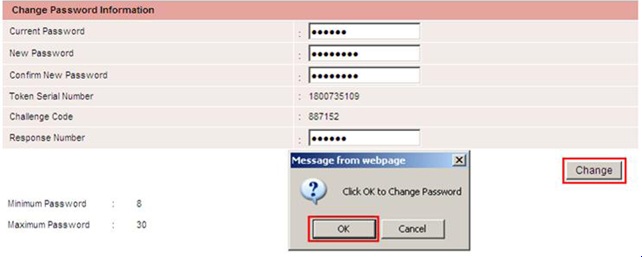
2. The following page will be displayed, at which you may enter "Current Password", "New Password" and "Confirm New Password" fields.
At this point, power on your security
device and enter your PIN (if it is not already turned on).
3. When prompted to "SELECT", press "2" for CR. Enter the Challenge Code shown on your computer screen into the security device.
The security device will generate a
Response Number which you can enter into the "Response Number" field on your computer screen, click on "Change".
|
|
| Step 3: Logging in (first and subsequent login) |
1. At the login page, enter your Corporate ID, User ID, new Password and click "Login".
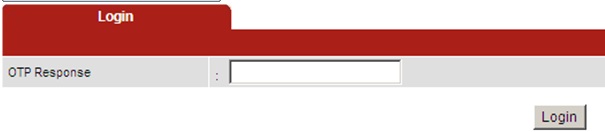
2. The following page will appear and prompt you for an OTP Response Number.
|
|
3. Power on your security device, enter your PIN (if it is not turned on) and at "SELECT" prompt, press "1" for OTP.
4. Enter the number shown on the device into the "OTP Response" field above and click "Login"
5. Upon successful login, you will be prompted to accept the BizChannel@CIMB Terms and Conditions before proceeding.
|
What is the life span of the security device?
|
Each security device is estimated to have a life span of 3 years. This is dependent on the frequency of usage and treatment of the security device.
|
How do I replace the security device in the event that it is damaged or the battery is low?
|
Please contact our BizChannel@CIMB Support Team at +65 6438 7888 for assistance.
|
What should I do if I lose the security device?
|
Please contact our BizChannel@CIMB Support Team at +65 6438 7888 for assistance.
|
Is there a replacement fee for the security device?
|
Yes, there will be a replacement fee of S$30 if it is lost or damaged.
|
How do I use the security device?
|
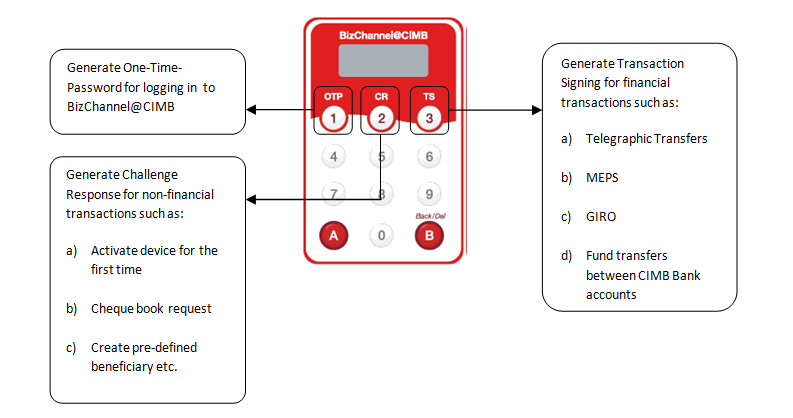
The illustration below provides an overview of the different functions required for some of the key online transactions.
|
|
* On screen Instructions on how to key in the Transaction-related information for "TS" function will be provided when you perform your transaction that requires the Transaction Signing feature.
|
Back to top of page
|